
Edit video by editing text
Interviews, vlogs, tutorials, podcasts: SceneMill writes down what is said, and you cut the video by deleting words. Select a sentence, press Delete, and it is gone from the picture and the sound. Free, and on your own computer: nothing is uploaded.
Open the transcript
Put your recording on the timeline and select it. The Transcript tab sits beside the library (or choose View › Transcript). It always shows the recording of the clip you select.
Transcribe it once
Click Transcribe. SceneMill turns the speech into words with their exact times, using the same speech recognition as the automatic subtitles, on your computer. If no speech model is installed yet, download one once under Timeline › Auto Captions.
The transcript is saved with the project, so this happens only once per recording.
Select words, press Delete
Select words in the text as in any document and press Delete (or Cut Selected Words). They are cut out of the timeline, picture and linked sound together, and the gap closes. Words that follow each other go in one cut, with the pause between them.
- Cut words stay in the text, struck through, so you see what is gone
- Click a word to move the playhead there; while it plays, the spoken word is marked
- Ctrl + Z brings words back
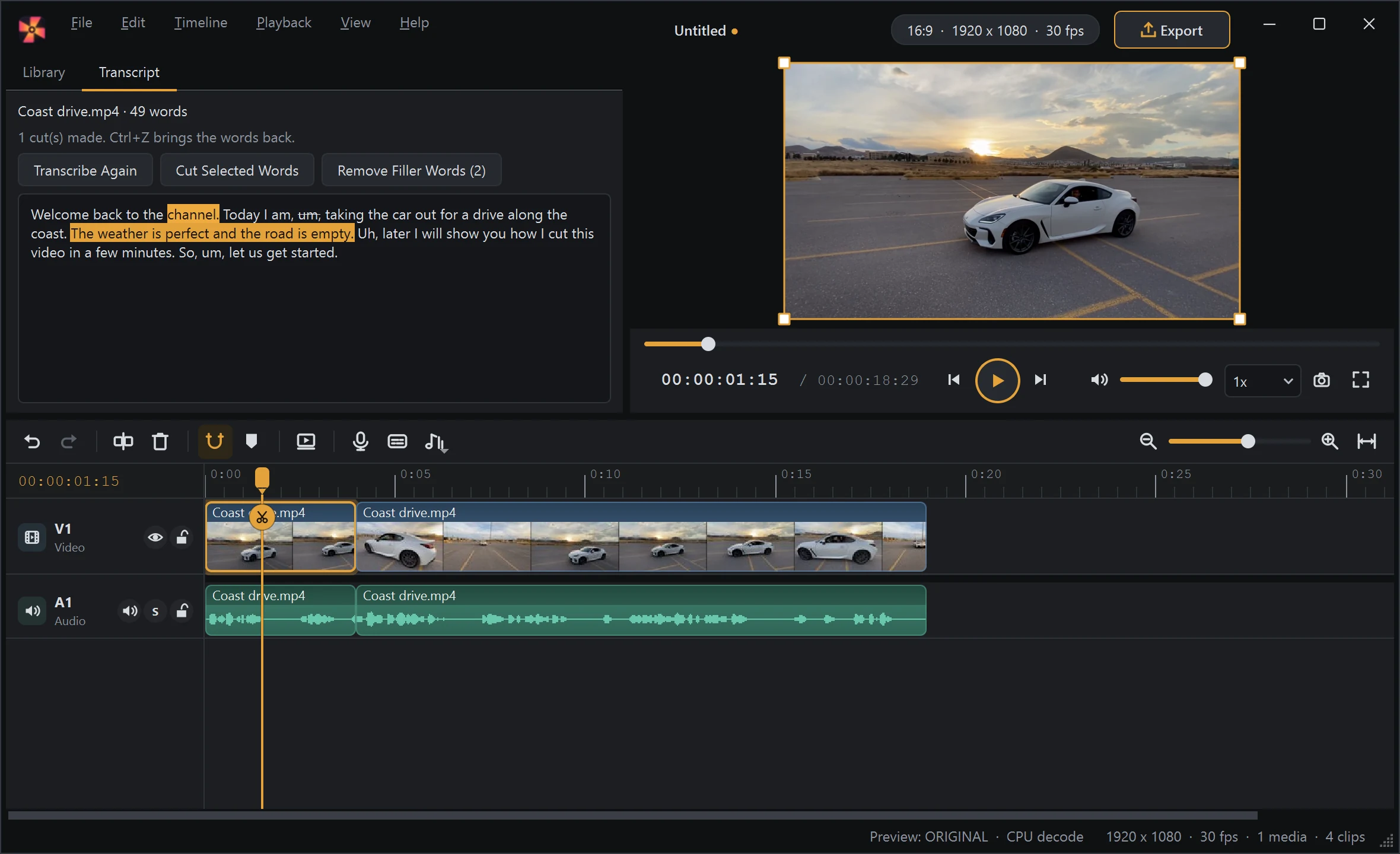
Remove the filler words
Remove Filler Words cuts every "um", "uh", "äh", "ähm" and the like at once. The button says how many there are. For long pauses, the Assistant's Find Silences does the same with quiet passages.
Finish on the timeline
The cuts are ordinary cuts: trim, move or add transitions, B-roll, titles and music as always. Then add subtitles and export.
Questions
Which languages? The same 14 as the automatic subtitles, or automatic detection.
Is my video uploaded? No. The speech recognition runs on your PC; only the speech model is downloaded, once.
Does it cost anything? No. SceneMill is free, without a watermark and without limits on minutes.