Smooth editing on a slow PC
Phone and drone footage is often 4K in HEVC, and that stutters on an older laptop. SceneMill has the tools that make it play smoothly anyway, and your export still uses the full-quality originals.
Let SceneMill make proxies
A proxy is a small, light copy of a heavy video that the preview plays instead. When you import footage that is hard to play (larger than 1440p, HEVC, ProRes or AV1 above 1080p, 10-bit, or a very high bitrate), SceneMill points it out above the library: click Create 540p Proxies.
- For any other video: right-click it in the library, then Proxy › Create 720p, 540p or 360p Proxy
- Proxies are made in the background, one at a time. You keep editing meanwhile
- The status bar shows when the preview plays proxies. The export always uses the originals
Lower the preview quality
Under the viewer, switch the preview from Auto to Half or Quarter. The picture gets a little softer while you edit, and much lighter to compute. The export is not affected.
Render the heavy parts
Several effects stacked on one clip can be too much to play live. In File › Settings › Performance, Render heavy parts by itself renders such parts a few seconds after you stop editing, so that they then play smoothly.
Try the graphics card
On the same page, Decode the preview on the graphics card can help weak laptops with 4K HEVC video. On most PCs it is faster to leave it off, so try both. Help › Diagnostics shows which graphics cards, decoders and encoders SceneMill found on your PC.
Export faster
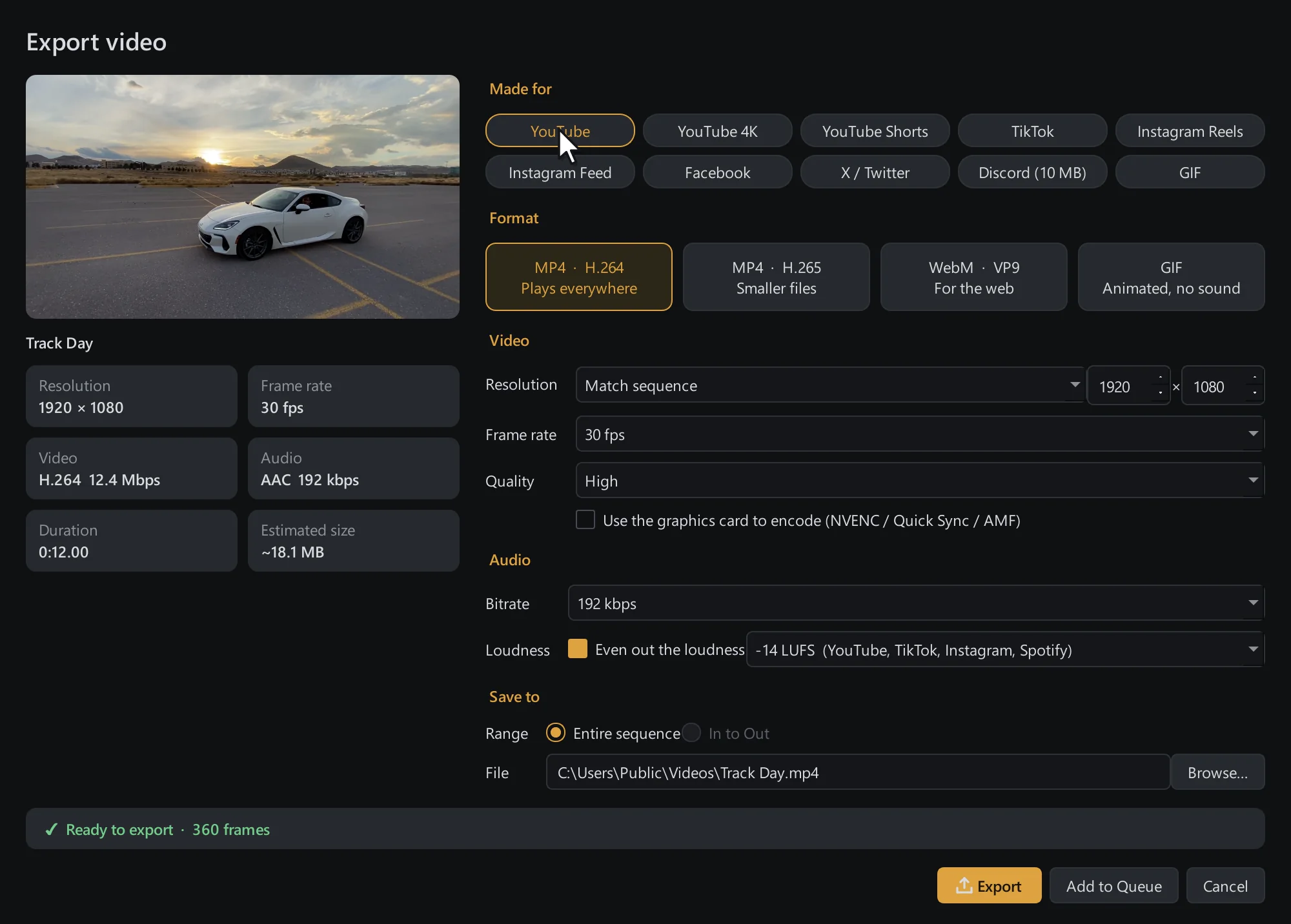
In the export dialog, Use the graphics card to encode hands the work to NVIDIA NVENC, Intel Quick Sync or AMD AMF where your PC has one. That is usually much faster than encoding on the processor.
Add to Queue renders in the background while you go on editing.