
A photo slideshow with music
Holidays, a wedding, a birthday: a folder of photos becomes a video with music, transitions and gentle motion. Free, without a watermark, and your photos never leave your computer.
The quick way: import your photos (and a song), then choose Timeline › Create Slideshow. Pick how long each photo shows, one transition for every cut or several that take turns, the motion and the music, and SceneMill builds the whole slideshow in one step, even for thousands of photos. It can also spread the photos over the length of the song. The steps below do the same by hand, and show how to fine-tune it.
Set how long each photo shows
Open File › Settings › Editing (Ctrl + ,) and set Photo to the length you want, for example 3 seconds. Usual is 5. Photos placed from now on get this length.
Bring in the photos
Drag the whole folder from Explorer into the Media tab, or click Import (Ctrl + I). Folders are read with everything inside. PNG, JPEG, WebP, BMP and TIFF are welcome.
Sort the library by Name if your photos are numbered, or by Newest.
Lay them out on the timeline
Click the first photo in the library, hold Shift and click the last one to select them all, then drag them onto the first video track. They land one after another, in the order of the library.
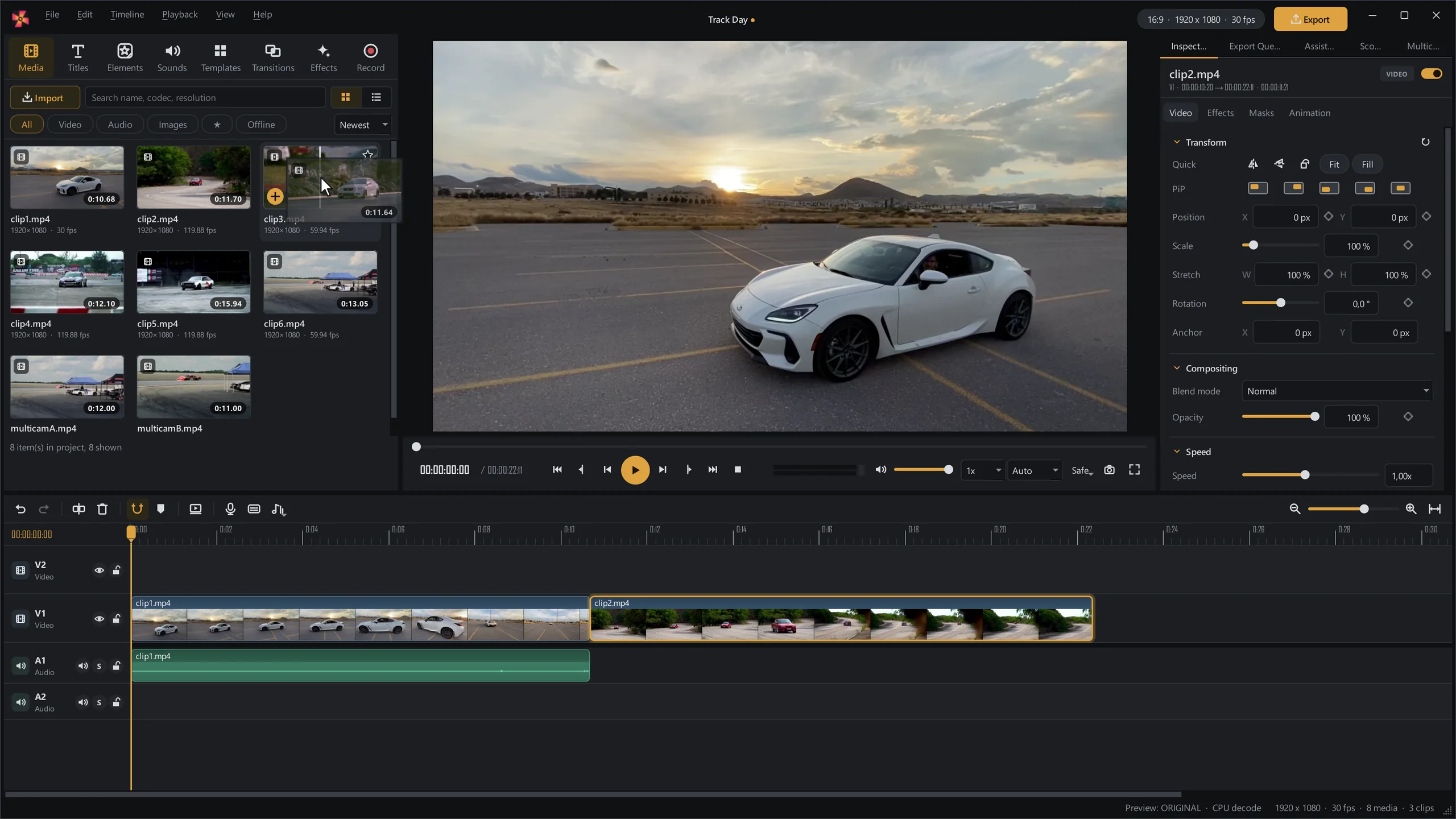
To change the order later, drag a photo along the track. Shift + Delete removes one and closes the gap.
Add music, and cut to the beat
Import a song and drag it onto an audio track. Then, if you like, let the photos change on the beat:
- Select the song and choose Timeline › Beat Sync › Detect Beats (Ctrl + Alt + B)
- Select the photos and choose Cut on Every Bar (or every beat, every second beat, every two bars)
SceneMill lays the photos one after another so that every change lands on the music. Select the song to fade it in and out in the inspector.
One transition between every photo
Open the Transitions tab and drag a transition onto the first cut between two photos. Select it on the timeline and click Apply to all cuts on this track: every change gets the same transition and length.
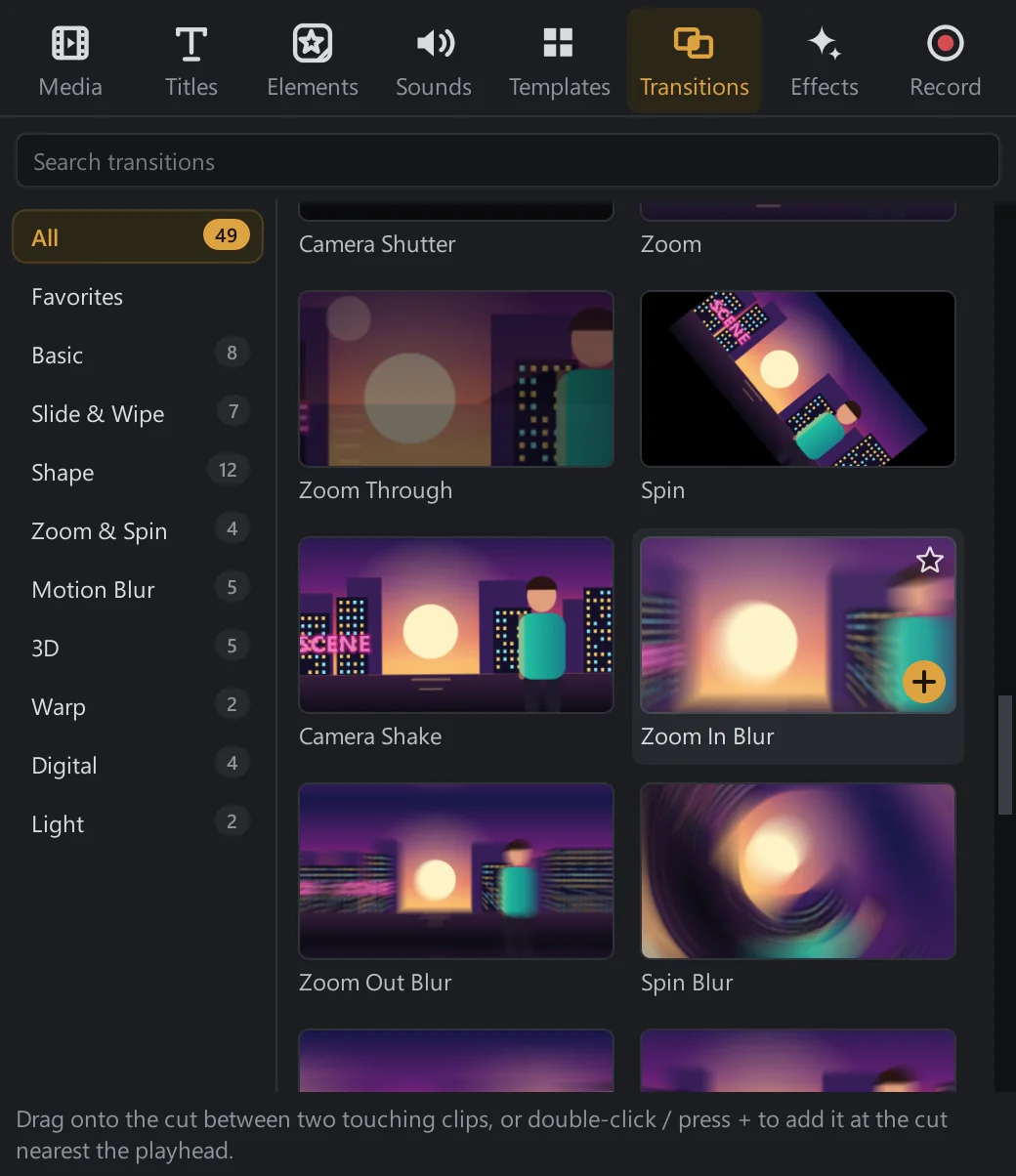
Calm slideshows look best with Cross Dissolve. Hover over any transition in the library to see it play first.
Let the photos move
Select a photo and open Animation in the inspector. Ken Burns slowly zooms and pans across it; Zoom in, Zoom out and the pans are there too. This is set photo by photo, so pick it for the pictures that deserve it.
For a title at the start, open the Titles tab and drag one above the first photo.
Export
Click Export (Ctrl + E) and pick where the video goes: YouTube, a phone in portrait for Reels and TikTok, or a plain MP4 for the TV. SceneMill sets format and size.
For a portrait slideshow, set the project to 9:16 first with the format button above the viewer.